


|
|
|
|
|
 Fig 1.
Text Color: Foreground color of textual output in the popup.
Background: Default background color of textual output in the popup.
Alt. Background: Background color whenever the displayed information is actually overridden by another value (for example element color is overriden by active level symbology).
Max Height: Maximum number of rows to display in the popup. The actual number of displayed rows may be less than specified here depending on whether there is enough data to fill all the selected Toggles (for example you may have specified a toggle for Area but the selected element is just a straight line, so Area display is not appliceable because it cannot be computed).
Max Width: Preset maximum width of the popup.
Hor. & Vert. Offset: When the popup is set to follow cursor’s position, this is the number of pixels to shift the popup from the actual cursor position.
Popup Delay: When the popup is set to follow cursor’s position, this is the delay between the snap event and the moment when the popup shows up on the desktop. It is advisable to set this delay to a several seconds if you feel that popup is showing up too often. If you set it for example to 3 seconds and you snap to elements once every second you will not see the popup until you finish the snapping sequence. The other possibility is to mute (mute is controlled by keyin or from Toggles tab) the popup window alltogether and bring it up only when necessary by pressing Alt+Space keys on the keyboard.
AutoHide: If not zero, the time period after which the popup will disappear automatically. The value set to zero disables this feature.
Tip: If you wish to temporarily cancel automatic hiding of the popup just click inside the popup. However after the next snap, AutoHide will be reactivated.
DoubleBump: If not zero, the time period for the mouse gesture (described below) that automatically shrinks just about any dialog box in MicroStation as soon as the mouse pointer leaves its area (and expanded back to its normal size when you touch it again).
In addition it is the time period during which you can dismiss InfoSnap's main popup window by crossing quickly its border several times, in the same manner as when registering dialog boxes for automatic shrinking (described below).
If it is set to zero, shrinking dialog boxes and dismissing main InfoSnap popup using the gesture is disabled. If you want to disable this feature for all dialogs but leave it active for InfoSnap's popup, deselect 'Dbl.Bump left edge', 'Dbl.Bump right edge' and 'Dbl.Bump bottom edge' instead.
Tip: You may also disable using gestures and/or keyboard by setting the appropriate Bump option in Settings-2.
Activate this feature separately for each dialog box by registering it with the 'DoubleBump' feature. Do it either by quickly crossing the dialog box border with the mouse as follows: place the cursor within the dialog box and move it quickly downward and outside the dialog box and then upward and back into the dialog box, two times in a row within time span set in DoubleBump, or by using an override described below. The dialog box title (in the title bar) should change to be prefixed by an asterix (*) if you did it fast enough. Practice this a few times on different dialog boxes to get the feeling.
You can define which borders of dialog box should trigger registration by enabling appropriate option: 'Dbl.Bump left edge', 'Dbl.Bump right edge' or 'Dbl.Bump bottom edge'.
Important: this feature works differently on the InfoSnap pop-up. If the popup is touched by the cursor twice (from any direction) within specified time period, the popup is dismissed (not shrunk). It can be brought back to the screen by pressing simultaneously Alt-Space on the keyboard.
Tip: you can always override automatic shrinking of the dialog box by pressing the left mouse button together with the key defined in 'Keyboard' setting (described later on) while hovering over this dialog box. Do not click on its title bar as this has no effect here, and try to avoid clicking directly on list boxes. The dialog box title (in the title bar) should change to be prefixed by an an asterix (*) when the dialog becomes susceptible to DoubleBump.
Tip: You can automate your pre-selections of several dialog boxes by editing $InfoSnap-DoubleBump$.txt
Keyboard: Enables keyboard shortcuts to most common operations within InfoSnap: Home, End, Insert and Arrow Keys (you can define optional qualifier keys as well). It is also used to enforce registration/deregistration of dialog boxes for DoubleBump and AutoNuke features when used together with a click of mouse buttons on the selected dialog box. 'Key alone' means direct action without a Ctrl, Shift or Alt modifier.
Note that toggling visibility of the popup (i.e. recalling it when it is not visible) is hardwired to Alt+Space chord of keystrokes and cannot be modified.
Note: default configuration is 'Ctrl-key' which means Ctrl-Home, Ctrl-Insert, Ctrl-LeftClick etc.
'Home' activates the parent model of the current (active) model as seen in the InfoSnap model tree (model tree is visible in the pane behind the Home-icon)
'End' performs the very same operation as the Pin-icon
'Insert' performs the very same operation as the Rubber Stamp-icon
'Arrow keys' : Up & Down: insert and scroll the highlight within the popup, Left & Right: browse recorded snap data (snap history)
Important note: even if you do not intend to operate the InfoSnap popup from the keyboard, you will need to define this option anyway in order to operate some aspects of the 'DoubleBump' feature (automatic dialog box shrinking).
Monitor AccuSnap: When active, every snap event triggered by AccuSnap will be processed like a regular tentative point by InfoSnap.
Echo Accudraw: When enabled, AccuDraw readout is presented (echoed) near the cursor.
Adaptable positioning: Enables adaptable logic to the positioning of the main PopUp. If you move the cursor slightly in any direction just after a snap (tentative point) but before the popup opens, you indicate by this where you don't want to see the popup. For example if you move the cursor to the right, popup will be shown to the left of cursor and vice versa.
Volatile popup visibility: If enabled, makes InfoSnap balloon automatically go away when cursor leaves the view area or lands on a dialog box (just like it used to be in MicroStation V7). In other words, balloon will stay visible as long as cursor is within the view area. On the other hand, parking your balloon in a fixed position (see Mode of operation chapter) will make it immune to this behavior and InfoSnap balloon will stay visible regardless of cursor position.
Enhance uStn title bar: If enabled, a more detailed information will be shown in MicroStation's main title bar, including full file path, active working units, active scale, current workmode and more. Please also consult the 'Environment Variables' chapter for information about more advanced abilities of this feature (INFOSNAP_BANNER_PART1 & 2).
 Fig 2.
Report zero angles: If enabled, angles of zero-degrees will be reported. The default is to not show angles with zero values.
Customize angles...: Opens new dialog box where you can define the axis defining each zero-degree angle and the direction of angle readout for all planes of rectangular coordinate system.
 Fig 3.
 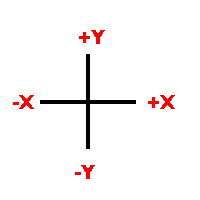 Fig 4.
Observe the convention used to denote the starting axis and the direction of angle:
+X+Y means: starting from the positive X-axis toward the positive Y-axis (i.e. counter-clockwise)
+X-Y means: starting from the positive X-axis toward the negative Y-axis (i.e. clockwise), etc.
A.S. balloon: defines how information should be inserted into the AccuSnap balloon popup. You must have the AccuSnap pop-up info balloon activated in order to use this option (from MicroStation menu: Settings->Snaps->AccuSnap).
Current state monitor: A diagnostics and status window described separately in the Settings-2 chapter.
Save: Save the current state of InfoSnap Settings and current InfoSnap mode of operation.
Restore: Restore the current state of InfoSnap Settings and current InfoSnap mode of operation. Re-reads both setting files.
Tip: You can close this dialog at any time. To reopen it reload InfoSnap (key in: MDL LOAD INFOSNAP) or reopen via the Right-Click popup-menu in InfoSnap's popup window. You can also access this dialog box via View Buddy pull down menu (via 'I-Snap' button).