


|
|
|
|
|
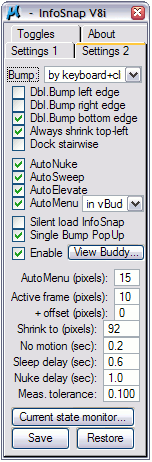 Fig 1.
Bump: Enables different ways of operating InfoSnap's DoubleBump registration of dialog boxes for automatic shrinking. Selection of 'By keyboard+click' enables a keyboard modifier defined in 'Keyboard'-option in Settings-1 to be used along with a mouse click and disables the zig-zag mouse gesture. Selection of 'By mouse gesture' does the opposite, and 'either way' enables both.
Dbl.Bump xxx edge: Define which borders of a dialog box should trigger registration with 'DoubleBump' by enabling whichever is appropriate: 'Dbl.Bump left edge', 'Dbl.Bump right edge' or 'Dbl.Bump bottom edge'.
Note: by default 'Dbl.Bump xxx edge' defines shrinking direction as well. This can be overriden. See also the Single Bump PopUp setting for other features controlled by enabling these edges.
Always shrink top-left: Override the shrinking direction to default vertical-upward with the origin set at the upper left corner of the dialog box.
Dock stairwise: Enforces a special alignment of shrunk dialog boxes making browsing a little easier. Already docked shrunk dialog boxes are not affected by this setting until you re-dock them.
AutoNuke: Controls automatic hiding of dialog boxes when approaching them with the cursor and triggering the hiding when cursor ceases its motion within the selected 'Active frame' area. Note that 'nonuke'-keyword may be used to make any dialog box entirely immune to 'AutoNuke'.
Note: you can always override automatic hiding of the dialog box by pressing right mouse button together with the key defined in 'Keyboard' setting (described later on) while hovering over this dialog box. Do not click on its title bar as this has no effect here, and try to avoid clicking on list boxes. The dialog box title (in the title bar) should change to be prefixed by an exclamation mark (!) when the dialog becomes immune to AutoNuke.
AutoSweep: Controls an automated mass-hiding of several dialog boxes obscuring the selected view. It is kind of AutoNuke on steroids. When activated, if the cursor is hovering over view's border or title bar, all dialog boxes obscuring this view are temporarily removed from sight. They are restored to their positions as soon as the cursor leaves the view's area or is placed on any other visible dialog box or menu. If you move the cursor to another view, the dialog boxes which are also obscuring this view as well will not be restored until the cursor is moved outside of this view. Note that the 'nonuke'-keyword may be used to make any dialog box entirely immune to AutoSweep.
AutoElevate: Brings a partially obscured dialog box or view to the front as soon as the cursor is hovering over its border or title bar.
AutoMenu: Activates context-sensitive popup menus. This is a very powerful functionality which is fully described in a separate chapter: Configuring AutoMenu. Please look there for all important details.
Silent load InfoSnap: When enabled, loading InfoSnap will not automatically open the 'Toggles' dialog box. Note that an attempt to reload an already loaded InfoSnap will result in the opening of the 'Toggles' dialog box so this setting only applies to initial load.
Single Bump PopUp: This option enables quick dismissing of InfoSnap's popup with a single touch by cursor. Dialog box edge which (when single-crossed with cursor) should be triggering the dismissal of the popup is defined with Dbl.Bump xxx edge settings. Crossing remaining edges (which at the least are including the top edge) will simply activate the icon bar in the popup and not dismiss it.
Enable View Buddy: This enables threat detection and activates a small Alarm Panel to display current threat level. See the View Buddy chapter for more information on possible threats to monitor.
AutoMenu (pixels): Defines the size of AutoMenu activator and the width of the strip triggering AutoMenu pull down menus on cursor fly-over.
Note: Now you can visually check where the 'AutoMenu strips' are just by pushing (and holding depressed!) the test button in 'Current State Monitor' dialog box. 'AutoMenu strips' are shown in blue color when they are active and in red color if the feature has been disabled.
Active frame (pixels): Defines the virtual boundary around the unshrunk dialog box.
The meaning of 'Active frame' for the DoubleBump feature: as long as the cursor is within this boundary, the dialog box will not shrink. When the cursor is outside this boundary for the time period larger than defined in 'Sleep delay', the dialog box collapses (shrinks) automatically. The default width is 20 pixels.
The meaning of 'Active frame' for the AutoNuke feature: whenever the cursor ceases its movement while hovering over the 'Active frame', the dialog box will disappear. As soon as the cursor is moved outside the 'Active frame', the dialog box will reappear again. If the dialog box is approached without halting the cursor over the 'Active frame', normal usage of the dialog will be maintained.
+ offset (pixels): Defines the offset of a virtual boundary from the unshrunk dialog box. It makes it possible to keep the cursor just outside the edges of a dialog box without triggering AutoNuke, thus making resizing of dialog boxes much easier by avoiding unintentional nukes. The default offset is 5 pixels (counted outward from a dialog box border). In other words, it pushes the 'Active frame' away from a dialog box by 5 pixels creating a neutral zone around the dialog box.
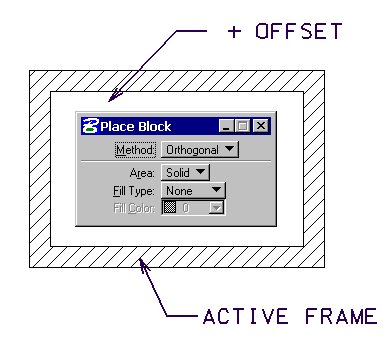 Fig 2.
Note: Now you can visually check where the 'Active frames' are just by pushing (and holding depressed!) the test button in 'Current State Monitor' dialog box. 'Active frames' are shown in cyan color when they are active and in red color if the feature has been disabled.
Shrink to: The horizontal size of shrunk dialog boxes.
No motion: Defines the time which has to elapse before the standstill cursor is considered being stationary. Currently the stationary cursor triggers unshrinking DoubleBump'ed dialog boxes and dismissing the main PopUp if 'SingleBump PopUp' is activated.
Sleep delay: Defines a delay before some actions are executed with regard to InfoSnap GUI. The larger value will give the less responsive feeling of GUI, the smaller value gives more immediate responses which may be undesirable in many cases. The default is 0.3sec. Currently this setting controls the time period before the icon menu is shown in the main popup and delay before shrinking DoubleBump-ed dialog boxes.
Meas. Tolerance: Precision for area/volume computations. Set it to a (much) higher value if you experience very slow response times on curved geometry in some working units setups.
Edit: Shortcut to DoubleBump settings file. Starts the NOTEPAD applet with the settings file opened and ready for editing.
Current state monitor: This dialog box monitors InfoSnap's context in real time. It is used mainly for trouble-shooting.
Dialog box information is necessary to automate the DoubleBump feature in configuration file: $InfoSnap-DoubleBump$.txt
Save: Save the current state of InfoSnap Settings and current InfoSnap mode of operation.
Restore: Restore the current state of InfoSnap Settings and current InfoSnap mode of operation. Re-reads both setting files.
Tip: You can close this dialog at any time. To reopen it reload InfoSnap (key in: MDL LOAD INFOSNAP) or reopen via the Right-Click popup-menu in InfoSnap's popup window. You can also access this dialog box via View Buddy pull down menu (via 'I-Snap' button).