


|
|
|
|
|
Environment variables can be defined at operating system's level (Control Panel->System->Advanced) or in MicroStation (Workspace->Configuration).
The following variables have special meaning for InfoSnap:
Name |
Value/Description |
Remark |
INFOSNAP_SETTINGS |
c:/path/to/your/directory/ If not defined, MS_TMP will be used instead, where the file "$InfoSnap-preferences-UserName-v13$.dat" will be created with all preferences defined by user UserName. |
(1) |
INFOSNAP_DOUBLEBUMP |
c:/path/to/your/directory/ If not defined, the directory where InfoSnap was installed will be used. In that case InfoSnap expects to find the data file "$InfoSnap-DoubleBump$.txt" in this directory. |
(1) |
INFOSNAP_TEXTEDITOR |
name of applet This variable defines text editor to be used for editing DoubleBump settings file. If this variable is not defined, NOTEPAD.EXE will be used as the default text editor. |
|
INFOSNAP_ECHO |
1 This variable activates echoing of (InfoSnap-issued) keyins to MicroStation Message Center. Keyin templates are user editable extensions to most of InfoSnap Toggles. Whenever the Toggle is being activated, the associated keyin is executed. By defining this variable you may monitor all information being sent from InfoSnap to MicroStation in response to using Toggles (for example via Ctrl-Insert key). |
|
INFOSNAP_LOG |
1 This variable exist for debugging purposes. When defined, InfoSnap will create the text file InfoSnap_EventLog.txt in your root directory. New file is created each time InfoSnap is loaded. When InfoSnap manages MicroStation GUI (via AutoNuke, DoubleBump, etc.) it will write all intercepted GUI events to this file. Do not define this variable unless absolutely necessary, as it negatively affects MicroStation's and InfoSnap's performance. |
|
INFOSNAP_AUTOMENU |
c:/path/to/your/directory/ If not defined, the directory where InfoSnap was installed will be used. In that case InfoSnap expects to find the data file "$InfoSnap-AutoMenu$.txt" in this directory. |
(1) |
INFOSNAP_VIEWBUDDY_SLAVE_OPEN INFOSNAP_VIEWBUDDY_SLAVE_CLOSE |
View Buddy can display a slave dialog box for the convenience of altering locks or other settings which triggered the alarm indicator. You may define any dialog box as a slave via key-ins assignes to these variables as follow: Slave dialog box is accessible from View Buddy control panel via 'Fix' button. If defined, both variables should point to valid keyins. The first one is executed when user presses the 'Fix' button on View Buddy control panel, the second one is executed when View Buddy decides to close the control panel because cursor has been moved away from it. If they are not defined, the first variable defaults to keyin "DIALOG LOCKTOGGLES" which opens Lock Toggles alongside View Buddy control panel, and the second one closes the Lock Toggles dialog box. If you have a slave dialog box already opened manually, the 'Fix' button will not do anything at all. |
|
INFOSNAP_MANUAL_UPDATES |
When defined and set to any value: globally disables the automatic checking for InfoSnap program updates. If not defined, InfoSnap automatically performs one check for available updates when loaded. No information from your computer is ever transferred through the Internet during the check nor during the update. |
|
INFOSNAP_SEED_SETTINGS INFOSNAP_SEED_AUTOMENU INFOSNAP_SEED_DOUBLEBUMP |
Handy variables for deploying InfoSnap on intranets. Whenever InfoSnap is not able to locate any of its settings files on the local machine, it will look into pathes defined by these environment variables. Each of them should point to fully qualified path ending with the file name of the respective settings file. If missing file is succesfully located, it will be copied to the local machine and used locally from now on. |
|
INFOSNAP_LAYOUT |
Can be set to path where the file containing the snapshot of current dialog box positions is stored. The file will be created automatically. If not defined, it defaults to MS_TMP. This variable is rarely needed. |
|
INFOSNAP_BANNER_PART1 INFOSNAP_BANNER_PART2 |
Display a custom text or content of up to two environment variables in MicroStation title bar. When defined, each of them can either point to an arbitrary text string or a name of an environment variable of your choice. If they point to an arbitrary text string, the string should be prefixed with a dash '-' in order to be displayed verbatim instead of being interpreted as a variable. |
(2) |
INFOSNAP_CONNECT_TIMEOUT |
Nmber of seconds to wait for a connection to be successfully initiated. Default is 10 seconds. |
(3) |
INFOSNAP_CONNECT_RETRIES |
Number of attempts to initiate connection. Default is 2 consecutive attempts. |
(3) |
INFOSNAP_TRANSFER_TIMEOUT |
Max length of inactivity during transfer before connection is dropped. Default is 120 seconds. |
(3) |
Remark 1:
INFOSNAP_SETTINGS, INFOSNAP_AUTOMENU and INFOSNAP_DOUBLEBUMP environment variables are even more flexible: When they contain only the file path (i.e. are terminated with a backslash '\'), the file name will be automatically generated and appended by InfoSnap. If they define a full file path together with a file name (i.e. are not terminated with a backslash '\'), this file name will be used instead.
For example:
INFOSNAP_DOUBLEBUMP = C:\data\
will result in: C:\data\$InfoSnap-DoubleBump$.txt
INFOSNAP_DOUBLEBUMP = C:\data\mybumps.txt
will result in: C:\data\mybumps.txt
The current location of both configuration files is listed in the Current State Monitor dialog box (accessible through Settings).
Remark 2:
In order to see results in MicroStation title bar, make sure that you have activated 'Environment Variables'-toggle in 'Enhance uStn title bar' (in InfoSnap 'Settings 1''-tab)!
Example:
1) Variable definition:
INFOSNAP_BANNER_PART1 = _USTN_PROJECTDESCR
2) Displayed result:
Name of current project in MicroStation title bar, in our case it happens to be "Untitled Project"
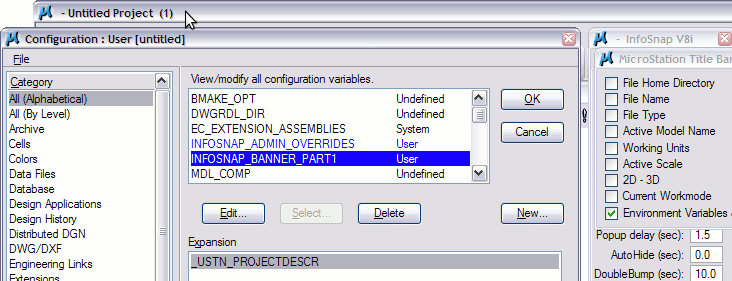 Fig 1.
Remark 3:
In case of difficulties to establish a stable connection to InfoSnap update site, you can adjust key parameters which are controlling InfoSnap Internet access. This is done by defining these environment variables.