


|
|
|
|
|
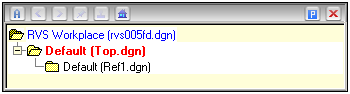 Fig 1.
Models View is presented as a dynamic tree of Models. This tree does not reflect the reference file structure in any way. Instead, it reflects the way you have accessed or visited these models. The current model is displayed in red. The model you just left is displayed in blue. Other models which you have identified by snapping to elements or visited in the past are shown in black. The tree is updated whenever you explicitly open the DGN Model for editing or just snap to an element contained in a referenced DGN Model (aka "Reference File").
In order to jump to any DGN Model in the tree (i.e. to make it the Active Model), simply double-click on it. For example, this is what happens when we double-click on model Default in Ref1.dgn:
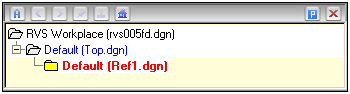 Fig 2.
Now when we have switched to this model, it is now displayed in red color as an active model.
Please also keep in mind that pressing Ctrl-Home will always bring you to the model shown in blue color.