


|
|
|
|
|
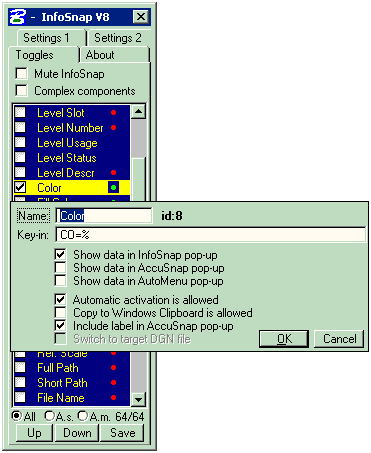 Fig 1.
Mute InfoSnap: suspend information retrieval (disable popup).
Complex components: When active, information in the popup pertains to the single component of a complex element rather than complex element in its entirety (for example a line element within a cell, rather than the cell itself). This is different from MicroStation’s AccuSnap balloon output.
[v]: enable/disable the display of the corresponding field in InfoSnap's main popup (and AccuSnap's balloon if appropriate).
Name: how to edit: double-click on the name column and do your name editing in a modal popup.
id:# this is the unique Toggle ID number. For example in Fig 1 the ID number for the Color toggle is 8. Toggle ID numbers are used in key-ins for defining the subject Toggles.
Key-in: how to edit: double-click on the name column and do your key-in editing in a modal popup. Insert the percent character (%) wherever you want InfoSnap to insert the actual value retrieved from the design file. You can use SELVIEW 0 if a datapoint is required in the current view.
Show data in InfoSnap: when this option is enabled, the corresponding field and its value retrieved from the design file will be inserted into InfoSnap's main pop-up balloon.
Show data in AccuSnap: when this option is enabled, the corresponding field and its value retrieved from the design file will be inserted into AccuSnap's pop-up balloon. See 'A.S. balloon' in Settings-1 for more info.
Show data in AutoMenu: when this option is enabled, the corresponding field and its value retrieved from the design file will be inserted into dynamic AutoMenu sub-menu with the same name as its corresponding Toggle. You MUST enable Show data in InfoSnap for this Toggle as well because Show data in AutoMeny is simply reusing data gathered by main InfoSnap balloon. See the Configuring AutoMenu chapter for all important details.
Automatic activation is allowed: when this option is enabled, the corresponding field in the InfoSnap main popup will be automatically processed when you press the 'Insert' -key (with an appropriate modifier) or when you use the 'Rubber Stamp' icon or Right-Click menu in popup.
Copy to Windows Clipboard is allowed: when this option is enabled, the corresponding field in the InfoSnap main popup will be automatically copied to Windows Clipboard when you press the 'Insert' -key (with an appropriate modifier) or when you use the 'Rubber Stamp' icon or Right-Click menu in popup. Note that only one field at a time may be copied to Windows Clipboard. The last one copied is available for pasting to any other application you like.
Include label in AccuSnap popup: when this option is enabled, the 'Name' will be inserted as a label for its corresponding value.
Switch to target DGN file: when this option is enabled, InfoSnap will activate the reference file when processing this Toggle. For example the 'Level Name' toggle is depending on this setting: if enabled, InfoSnap will activate the owning model from the reference file before activating the level, if disabled it will try to activate the level with the same name if it can be found in currently active file.
All: show all available toggles.
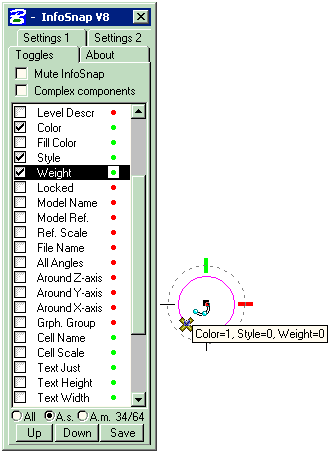 Fig 2.
A.s: show only those toggles which can be inserted into AccuSnap balloon (see Fig 2.).
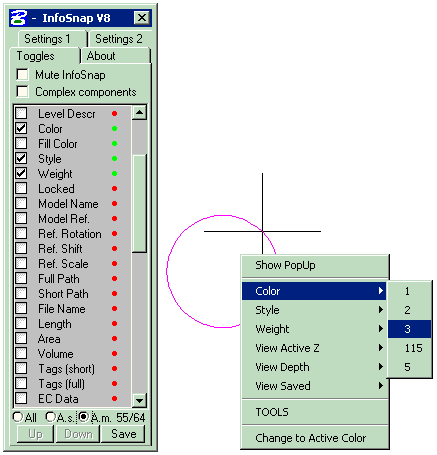 Fig 3.
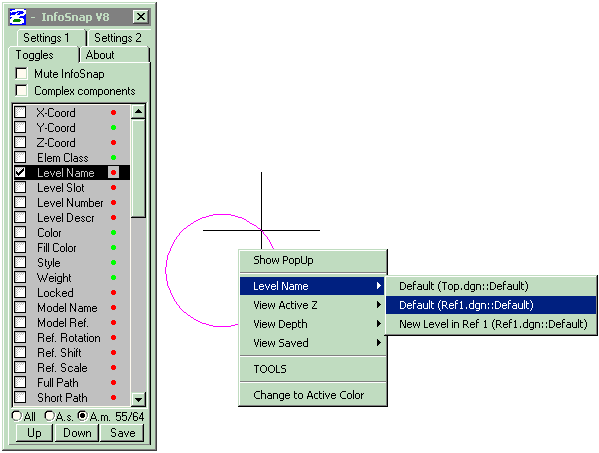 Fig4.
Fig4.
A.m: show only those toggles which can be inserted into AutoMenu poup menu (see Fig 3. and Fig 4.). You MUST enable Show data in InfoSnap for this Toggle as well because Show data in AutoMeny is simply reusing data gathered by main InfoSnap balloon.
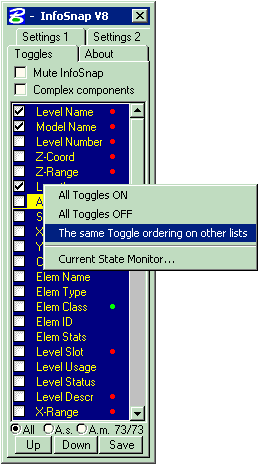 Fig 5.
Up / Down: change the display order in popup: highlight the row you want to move up or down by clicking on its name and press “Up” or “Down” buttons as many times as needed to move the row to its new position. Do not forget to press 'Save' in Settings tab when you are done.
Note: main InfoSnap popup balloon, AccuDraw popup and AutoMenu have separate toggle lists here. This means that you can maintain separate sort orders and separate display states for all three lists.
Save: Save the current state of InfoSnap Settings and current InfoSnap mode of operation.
Green and Red dots: a Green dot denotes a toggle that has an assigned Key-in and for which the 'Automatic activation' of the key-in is enabled. A Red dot denotes a toggle that has an assigned Key-in but 'Automatic activation' of the key-in is disabled. No dot denotes a toggle which can not have any assigned key-in at all. Placing the mouse cursor just to the right of a dot, will activate a balloon showing the associated key-in.
All toggles On/Off: enable/disable all Toggles in this list with one click.
Synch other Toggle lists: force all items on remaining two lists (AccuSnap and AutoMenu) to follow the main list's sort order. This saves a lot of time when reordering items on "All" list and applying the same order for other lists.
Current State Monitor: yet another short-cut to beloved Current State Monitor.