


|
|
|
|
|
Key-in |
Usage |
INFOSNAP SETTINGS |
Use to open or close the main Settings (and Toggles) dialog box |
INFOSNAP RESTORESETTINGS |
Re-read saved settings from the disk (force loading shrunk dialog boxes if necessary) |
INFOSNAP STATEMONITOR |
Use to open or close the Current State Monitor dialog box |
INFOSNAP MUTE |
Use to toggle the Mute setting |
INFOSNAP MUTE ON |
Use to enable the Mute setting |
INFOSNAP MUTE OFF |
Use to disable the Mute setting |
INFOSNAP COMPLEX |
Use to toggle the Complex Components setting |
INFOSNAP COMPLEX ON |
Use to enable the Complex Components setting (i.e. skip data in complex headers) |
INFOSNAP COMPLEX OFF |
Use to disable the Complex Components setting (i.e. report data in complex headers) |
INFOSNAP POPUPTOGGLE ON # |
Enable the visibility of the Toggle-# in InfoSnap popup (obtain Toggle-# via Edit Toggle) |
INFOSNAP POPUPTOGGLE OFF # |
Disable the visibility of the Toggle-# in InfoSnap popup (obtain Toggle-# via Edit Toggle) |
INFOSNAP POPUPTOGGLE ALLON |
Enable visibility of all Toggles in InfoSnap popup |
INFOSNAP POPUPTOGGLE ALLOFF |
Disable visibility of all Toggles in InfoSnap popup |
INFOSNAP POPUPMODE |
Toggle between Element Info and Model History |
INFOSNAP POPUPACTIVATE |
The same as Rubber-stamp icon or 'Insert' hotkey |
INFOSNAP HOME |
The same as 'Home' hotkey |
INFOSNAP ASNAPTOGGLE ON # |
Enable visibility of the Toggle-# in AccuSnap balloon (obtain Toggle-# via Edit Toggle) |
INFOSNAP ASNAPTOGGLE OFF # |
Disable visibility of the Toggle-# in AccuSnap balloon (obtain Toggle-# via Edit Toggle) |
INFOSNAP ASNAPTOGGLE ALLON |
Enable visibility of all Toggles in AccuSnap balloon |
INFOSNAP ASNAPTOGGLE ALLOFF |
Disable visibility of all Toggles in AccuSnap balloon |
INFOSNAP CLIPBOARDTOGGLE ON # |
Enable access to Windows Clipboard for the Toggle-# (obtain Toggle-# via Edit Toggle) |
INFOSNAP CLIPBOARDTOGGLE OFF # |
Disable access to Windows Clipboard for all Toggles in AccuSnap balloon |
INFOSNAP CLIPBOARDTOGGLE ALLON |
Enable access to Windows Clipboard for all Toggles in AccuSnap balloon |
INFOSNAP CLIPBOARDTOGGLE ALLOFF |
Disable access to Windows Clipboard for the |
INFOSNAP CUT <any text> |
<any text> is the text string to be inserted in Windows Clipboard |
INFOSNAP NEWDIALOG ActionString |
<ActionString> is the text string following the format defined in the DoubleBump settings file. See the notes below (1). |
INFOSNAP ZEROANGLE |
Use to toggle the 'Report zero-angles' setting |
INFOSNAP ZEROANGLE ON |
Use to enable the 'Report zero-angles' setting |
INFOSNAP ZEROANGLE OFF |
Use to disable the 'Report zero-angles' setting |
INFOSNAP XROTATION Option |
Define rotation angle readout. See the notes below (2). |
INFOSNAP SCALE value unit |
Where 'value' is any value by which the measured length should be multiplied and where 'unit' is any text string which will be used as the unit name. Note that simply giving the keyin: "INFOSNAP SCALE value unit" will set all three scales described below to the corresponding value. |
INFOSNAP LENGTHSCALE value unit |
Example: your DGN Settings define 1 millimeter as the Master Unit. You want readout in InfoSnap to be presented in meters instead: INFOSNAP LENGTHSCALE 0.001 m |
INFOSNAP AREASCALE value unit |
Example: your DGN Settings define 1 millimeter as the Master Unit. You want readout in InfoSnap be presented in squared meters instead: INFOSNAP AREASCALE 0.001 m |
INFOSNAP VOLUMESCALE value unit |
The description is analogic to AREASCALE and LENGTHSCALE above. |
INFOSNAP DECIMALS number |
Where 'number' is a number of decimal places in SCALE'd floating point value (i.e. precision). Note that specifying this setting will force InfoSnap to use Master Units for all SCALE'd output. |
INFOSNAP AUTOMENU |
It toggles (activates / deactivates) a new context-sensitive menu system |
INFOSNAP AUTOMENU ON |
It activates a new context-sensitive menu system |
INFOSNAP AUTOMENU OFF |
It deactivates a new context-sensitive menu system |
INFOSNAP TOGGLEPOPUP |
It has the same effect as pressing Alt+Space keys on the keyboard. Toggles visibility of main popup balloon without changing its position. |
INFOSNAP SHOWPOPUP |
Brings main popup balloon to current cursor position. Balloon is opened if it was already closed. |
INFOSNAP EXCHANGEAUTOMENU path |
When issued without optional path parameter, it simply reloads the current AutoMenu settings file. When issued with path, the environment variable INFOSNAP_AUTOMENU is temporarily set to the new path and the new settings file is loaded. The change is not persistent (i.e. not saved between sessions). Can be used within AutoMenu settings files to chain several hierarchies of these files. |
INFOSNAP SHOWAUTOMENU |
Activates AutoMenu popup directly under the cursor! Cursor must be positioned within any view or else this keyin will be cheerfully ignored (the reason for this is assuring the correct operation of SELVIEW keyin) |
INFOSNAP ACCUDRAW DISTANCE xxx INFOSNAP ACCUDRAW ANGLE xxx INFOSNAP ACCUDRAW X xxx INFOSNAP ACCUDRAW Y xxx INFOSNAP ACCUDRAW Z xxx |
Keyins for AccuDraw control. They are to be used with Toggles which are giving either length, distance or angle readout (shown as xxx below, but use the % character when redefining Toggles). Example: Replace default keyin in the "Length" Toggle: PLACE TEXT; % with INFOSNAP ACCUDRAW DISTANCE % Activating this Toggle will now result in 'Length' being supplied for 'Distance' in AccuDraw switched to angular mode. 'Distance' will be locked in AccuDraw. |
INFOSNAP AUTOSWEEP ON INFOSNAP AUTOSWEEP OFF |
Self-explanatory keyins for controlling AutoSweep feature. When INFOSNAP AUTOSWEEP ON is issued and cursor is hovering over drawing area within a view, all dialog boxes intersecting this view will be sweeped off the sight until cursor leaves this area. |
INFOSNAP ECHOACCUDRAW ON INFOSNAP ECHOACCUDRAW OFF INFOSNAP ECHOACCUDRAW |
Self-explanatory keyins for controlling Echo AccuDraw feature. |
INFOSNAP VBUDDY1 [option] [Label] INFOSNAP VBUDDY2 [option] [Label] Options: ONSLEEP ONACTIVATE RED YELLOW GREEN ACTIVATE SLEEP |
Where: VBUDDY1, VBUDDY2 - is a trigger selector (defines first or second trigger as a target) ONSLEEP (state = 0 or FALSE), ONACTIVATE (state = 1 or TRUE) - define which state will activate alarm RED, YELLOW, GREEN - assigns the light color for this trigger to be used when the alarm is triggered ACTIVATE - request activate event (i.e. set state to TRUE) SLEEP - request sleep event (i.e. set state to FALSE)
Example: In a script composed of keyins to manage backups, you may add the following keyins to trigger a vBuddy alarm when the backup has failed: ; if state will be set to TRUE for VBUDDY2 INFOSNAP VBUDDY2 ONACTIVATE ; use red light INFOSNAP VBUDDY2 RED ; and set state to TRUE now and tell the user that we have a "Backup Failure!" INFOSNAP VBUDDY2 ACTIVATE Backup Failure!
And use following keyin when it succeeds: ; set state to FALSE, display green light and set message to "Backup OK" INFOSNAP VBUDDY2 SLEEP Backup OK
|
NOTES
(1) NEWDIALOG action string format (defined in the DoubleBump settings file) is:
State,ApplicationId,DialogId,TitleOverride,Key-In
Where 'State' is one of REQUIRED: top, left, right, none, nonuke, hide
- where 'top' means shrink to title bar
- where 'left' means shrink to left border (currently the same as 'top')
- where 'right' means shrink to right border
- where 'none' forbids any kind of shrinking
- where 'nonuke' forbids any kind of automatic nuking AND shrinking
- where 'hide' makes any dialog box permanently invisible (use with caution!)
Where 'ApplicationId' is the REQUIRED name of the owner MDL application (use asterisk '*' to match any application)
Where 'DialogId' is the REQUIRED dialog box number in MDL resource (use asterisk '*' to match any number)
Where 'TitleOverride' is the OPTIONAL dialog box title override
Where 'KeyIn' is the OPTIONAL key-in to force opening this dialog box (if you want it to auto-open)
See the delivered DoubleBump settings file template for complementary examples: $InfoSnap-DoubleBump$.txt
Use InfoSnap 'Current state monitor' (in the Settings tab) to obtain 'ApplicationId' and 'DialogId' with cursor.
(2) XROTATION Options
Example:
+X+Y counter-clockwise, starting from positive X-axis
+X-Y clockwise, starting from positive X-axis
Other valid options:
around X-axis: +Y+Z +Z-Y -Y-Z -Z+Y +Y-Z -Z-Y -Y+Z +Z+Y
around Y-axis: +Z+X +X-Z -Z-X -X+Z +Z-X -X-Z -Z+X +X+Z
around Z-axis: +X+Y +Y-X -X-Y -Y+X +X-Y -Y-X -X+Y +Y+X
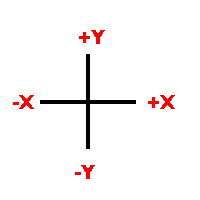 Fig 1. Quadrants around Z-axis.