


|
|
|
|
|
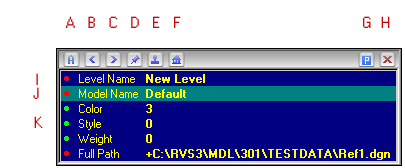 Fig 1.
Static Mode (G) is denoted by a blue 'P' icon.
The popup will stay at the designated place all the time in this mode.
Dynamic Mode (G) is denoted by a blue 'arrow' icon.
The popup will pop up in close proximity to the cursor in this mode (this is like the heads up in the previous editions of InfoSnap for MicroStation 95/SE/J ).
Clicking on the Mode icon toggles the mode (and the corresponding icon).
Note that the Save Settings button in Setup saves the mode of operation. Next time you start InfoSnap, the mode which was active at Save will be the default mode on start-up.
Relocating the popup (regardless of its mode) is done by clicking on the free space between Home (F) and Mode (G) icons and dragging the popup window while the mouse button remains pressed down.
A (A) icon let you activate current AutoMenu popup (this feature is described separately).
Browsing Arrows (B & C) icons let you browse between the last 20 screens of popup. Every snap event generates a new listing, unless you snap several times to the same element. When 20 listings are generated, the oldest one is discarded when the 21-st snap occurs, and so forth. You can prevent discarding of any listing by marking it up with Pin-icon (described below). The current listing’s number is listed in upper left corner of pop-up (A).
Pin (D) icon lets you mark (freeze) any listing in popup. The icon changes to green 'P'. Marked listing will not be discarded when new snaps are processed. This is a handy thing when working with AutoMenu feature which will be constrained to contents of marked listings only (otherwise it would reuse all available listings).
‘dot’-icon (I,J,K) in the listing denotes information that can be reused (or activated) by double-clicking on it in popup or clicking on the Rubber Stamp-icon. For instance, a double-click on Model Name will open this model for editing, double click on color number will make this color active and so forth. If you wish other things to happen you can always edit action strings in the Toggles-tab of the InfoSnap Setup dialog box (they are regular MicroStation key-ins after all). Hint: double-clicking on the Level Name in popup, besides activating the Level itself, will activate the Model if the model is in another file. If the Model is in the Active File, the models will not be switched.
Dot-icon colors (as maintained in ‘Toggles’-tab):
green dot (K) = the row has an associated action and has been selected for 'Automatic activation'
red dot (I,J) = the row has an associated action and has NOT been selected for 'Automatic'
no dot = the row is dead, has no action at all (action wise, nothing will happen)
Rubber Stamp (E) icon lets you reuse entire sets of reusable information. Highlight several rows (holding Ctrl or Shift button on keyboard) in any listing (rightmost column). Whenever you want to reuse the highlighted set, browse to it with Browsing Arrows and press the Rubber Stamp. Use a Pin-icon to freeze the entire set if you know you’ll need it later.
Instead of using the Rubber Stamp icon, the same action can be performed from the keyboard: just press the 'Insert'-key (along with modifier defined in the 'Keyboard' option in Settings-1).
You can enable Automatic Activation for frequently re-used fields. Do it in the 'Toggles'-tab described separately.
Home (F) icon displays The Model Tree which let you move fast to any of the Models ever listed in popup, or ever activated during the same design session. Think of it like a history of visited (or targeted) Models (see the Model History tree chapter).
Some navigational actions can be performed from keyboard: just press the 'Home'-key (along with a modifier defined in the 'Keyboard' option in Settings-1, default is Ctrl) to swith to the model which was active immediately before you entered the currently active model.
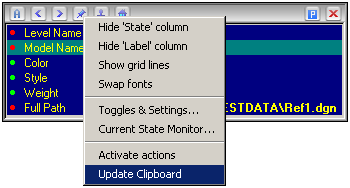 Fig 2.
Finally, the Right-Click menu allows you customizing popup and performing several common tasks.
In order to use 'Update Clipboard', the "Copy to Windows Clipboard allowed" property must be enabled for Toggles which are allowed to access Windows Clipboard. See 'InfoSnap Toggles' chapter for more information.