


|
|
|
|
|
This dialog box monitors InfoSnap's context in real time. It is used mainly for trouble-shooting.
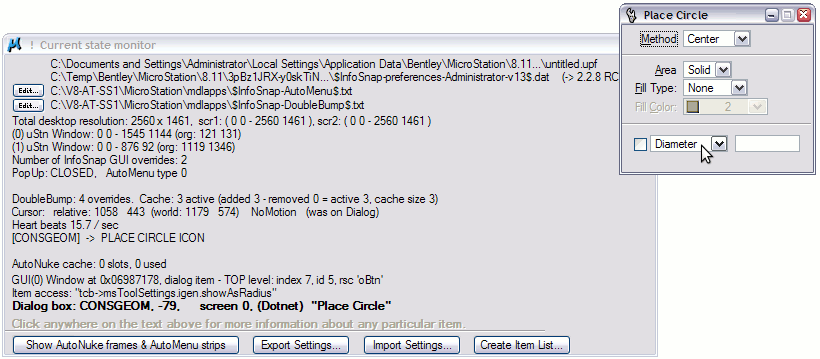 Fig 1.
You will also need to open this dialog box when tracing other dialog boxes identification numbers and their owners (MDL program name, task ID). In figure 1 above, you can see that your cursor is hovering above dialog box number -79 (minus seventy nine) belonging to application CONSGEOM.
Dialog box information is necessary to automate the DoubleBump feature in configuration file: $InfoSnap-DoubleBump$.txt
Other useful tidbits are: key-in triggering currently active command (here: PLACE CIRCLE ICON), the program variable behind the selected dialog box item (here tcb->msToolSettings.igen.showAsRadius), etc. This stuff may be useful when writing your own programs/macros.
Export Settings... - 'Current State Monitor' has been enhanced with export functionality. Pressing the new "Export Settings..." button will export all InfoSnap settings along with active MicroStation user preference file (*.UPF) file to the selected folder. This functionality will both aid all future problem reporting to me and can also be used to conveniently backup a snapshot of all InfoSnap settings.
Pressing this button will prompt for the destination folder and collect all settings files into the chosen folder and finally create an archive library which contain all InfoSnap data files in format which is suitable for "Import" (see below). Only the file with extension "*.Exported" is necessary to move all data files to another computer, the rest is copied simply for the convenience of having all current copies in one place.
Import Settings... - InfoSnap data files can be exported and imported across different MicroStation installations. Import logic resolves naming differences for affected data files and places them in correct locations (overwriting current ones without any warning). Only files with the extension "*.Exported" are processed (unpacked in place and copied to proper destinations). Note that MicroStation user preference file (*.UPF) can not be copied to its destination because it will be overwritten when exiting MicroStation. This file can be replaced manually when MicroStation is not running. Also special caution applies to MicroStation user preference files as they are usually not very portable between computers with different screen resolutions.
Create Item List... - This is mainly for Administrators who want to partially disable InfoSnap GUI and enforce some (but not all) settings while still allowing some degree of freedom for users for customizing InfoSnap. This is accomplished by creating an InfoSnap Workspace.
InfoSnap Workspace contains a list of GUI items, where any of them can be set to a predefined state/value and will be guaranteed to remain inaccessible (disabled) in InfoSnap GUI.
A Workspace is very easy to create - it is simply done by example. Just start with configuring InfoSnap exactly the way you want it, open Current State Monitor and select "Create Item List..." button.
Then open the created file in a text editor (like Notepad) and edit the first column changing the number 1 (one) to 0 (zero) only for those items which you want to freeze.
Finally, define a configuration (environment) variable INFOSNAP_ADMIN_OVERRIDES pointing to this file (full path). Restart InfoSnap, and voila! The workspace is activated and enforced.
Show AutoNuke frames & AutoMenu strips: With this test button you can visually check where the 'Active frames' are just by pushing (and holding depressed!) it. 'Active frames' are shown in one color when they are active and another when the feature has been disabled. The colors depend on the color of view background (usually result in yellow, cyan, blue or red). 'AutoMenu strips' are shown likewise. Snap to anything before pressing test button so you can see where the strips are relative to snap point. Please look into Configuring AutoMenu chapter for all important details.
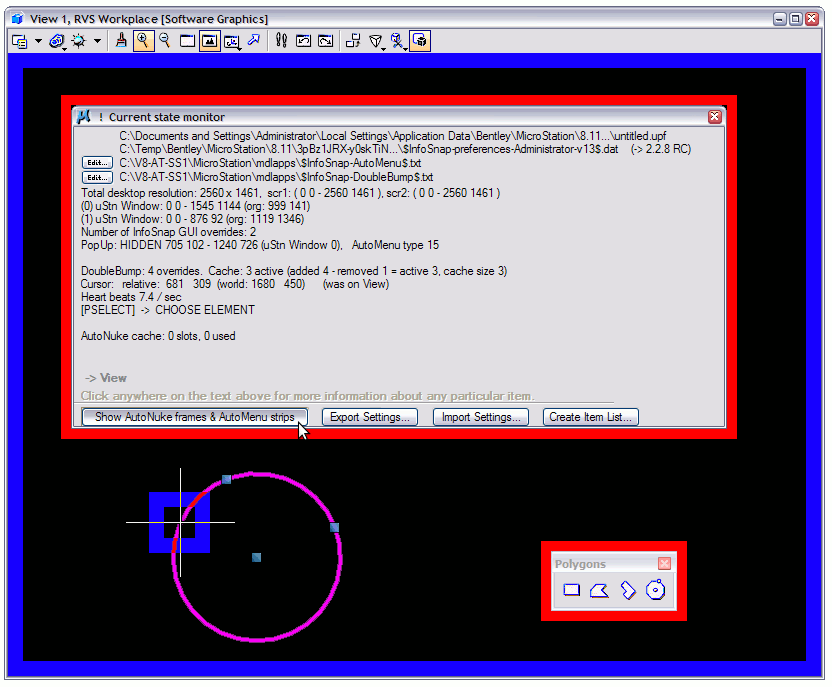 Fig 2.