


|
|
|
|
|
View Buddy (aka vBuddy) instantly makes you aware about any of several threats that you may encounter (when you least expect them!) when working in MicroStation. Think of it as highly customizable warning lamp. In addition, it can provide you with an entry point for AutoMenu feature (described separately in Configuring AutoMenu chapter).
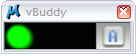 Fig 1.
vBuddy places a small Alarm Panel as a dockable dialog box (Fig 1.), or integrates it in Views title bar. When you hover the cursor over the vBuddy alarm box it automatically opens a slam-down which uncovers detailed information about the current alarm (if any). It also gives a mechanism to control what events should or should not trigger an alarm and how (Fig 2.).
Three leftmost radio button columns define the chosen color of the Alarm Light: Green, Yellow or Flashing Red. The rightmost column of checkboxes defines the state of the event which should trigger the alarm, either ON=1 or OFF=0.
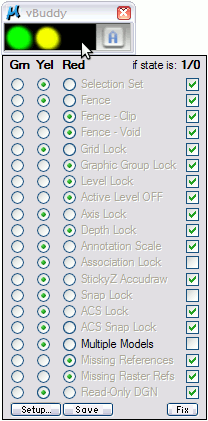 Fig 2.
Here, for instance, we defined that absence of Multiple Models in DGN file (state=0) should trigger Yellow alarm (Yel=ON). And it did. We can see that this is the only item which has its description shown in black. It means that it was triggered at the moment. All others are shown in grey color (which means: currently not triggered).
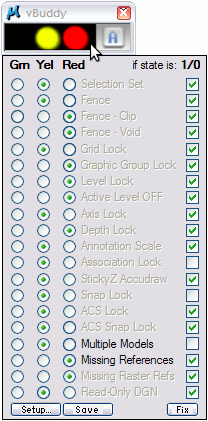 Fig 3.
In Fig 3. we are inspecting what triggered the Red alarm (in this example it was Missing References being Active=ON).
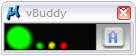 Fig 4.
Once we inspected the cause of alarm and move the cursor away, the slam-down collapses and Alarm Panel returns to Green state awaiting for new events. The tree dots are shown as a reminder that there are some alarm events present at the moment, but you have inspected them already.
However, whenever any new trigger is activated/deactivated by MicroStation which would result in displaying the yellow or red light, warning indicator will reverse back to showing correct warning level (red or yellow). When all triggers are showing green light, the warning indicator will display it as green light without three dots.
In other words, warning indicator will always report new 'red' and 'yellow' states but upon reviewing them by the user it will reset back itself to 'green' state, but yet it will indicate whether there is a non-green indication present.
You can easily customize the number and the order of events monitored by vBuddy. Simply select Setup (as shown in Fig 5.).
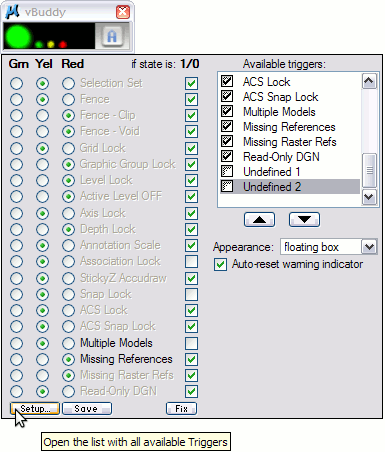 Fig 5.
The listbox on the right side lists all available triggers. You can change their order by placing the highlight on the one to move and use buttons below the list box to move this item. Deselect those you are not interested in by unselecting the check box to the left of trigger names.
You can choose to integrate the Alarm Panel in MicroStation Views. Use the Appearance option button to do it.
If you don't want vBuddy to reverse to Green state every time after inspecting active alarm triggers, deselect the option Auto-reset warning indicator. The change is that vBuddy will now accumulate all triggered states in its Alarm Panel and show them in real time but you may miss out some events if their color was previously triggered by something else (i.e. persistent states like 'Missing Reference Files' can overshadow more transient ones like 'Selection Set'.)
Lastly, press Save to make your choices persistent. That's it about customizing vBuddy.
The 'A' icon on the right side of Alarm Panel belongs to AutoMenu (when you hover the cursor over 'A' it will trigger a context sensitive pull down menu whose content is determined by the type of element that you have snapped to -- see Configuring AutoMenu chapter for more information).
For your convenience there are two more buttons worth mentioning: the I-Snap button (not shown) and Fix button.
Pressing the I-Snap button will open the main InfoSnap Settings dialog box (if not already open). InfoSnap Settings dialog box will close automatically when you move cursor out of it.
Pressing the Fix button will open MicroStation Lock Toggles dialog box by default (or any other dialog box you want - see the INFOSNAP_VIEWBUDDY_SLAVE_OPEN in Environment Variables chapter for more info). This dialog box will close automatically when you move cursor out of it.
You can also create your own warning indicators. ViewBuddy supports up to two separate user-defined entries in the threat list in ViewBuddy. Suitable keyins are listed "InfoSnap key-ins" chapter.